What is a Touchpad An Easy Complete Guide You Must Read
Published: 9 May 2026
Do you feel confused when someone talks about laptop gestures, clicking, or scrolling on a touchpad? Many people use this tool every day but still do not fully understand what is a touchpad and why it is important.
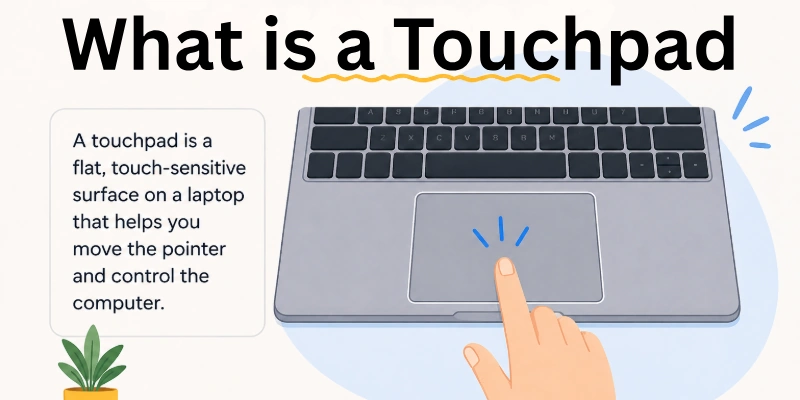
A touchpad is a small touch-sensitive surface located below the keyboard on a laptop. It allows you to move the cursor, open files, scroll pages, and perform many other tasks with your fingers.
In my experience, learning a few simple touchpad gestures can make laptop use much easier and more comfortable. Many modern touchpads also support multi-finger gestures that help users work faster. In this guide, we have covered everything you need to know about touchpads in simple and easy words.
History of a Touchpad
A touchpad started as a simple idea to replace the computer mouse and make laptops easier to use. Over time, it became a key part of almost every laptop, helping users control the cursor with finger movements.
- Early 1980s: Engineers experimented with touch-based input systems for portable computers because they wanted a compact and easier way to control devices without bulky external mice that did not suit early laptop designs
- 1994: Apple launches one of the first successful touchpad systems in PowerBook laptops and gives users a built-in tool to move the cursor smoothly without needing an external mouse
- Late 1990s: Laptop brands adopt touchpads as a standard input device because users prefer built-in navigation tools that improve portability and convenience
- Early 2000s: Manufacturers improve touchpads with better sensitivity and smoother cursor control so users can browse, edit, and manage files more easily
- 2008: Companies introduce multi-touch support and enable users to perform gestures like pinch to zoom and two-finger scrolling for faster interaction
- 2010s: Software developers add advanced gesture controls such as scrolling, rotating, and shortcut actions to help users work more efficiently without a mouse
- 2015 onwards: Modern touchpads use palm rejection technology and high-precision tracking to reduce accidental clicks and improve typing accuracy
- Today (2026): Touchpads power modern laptops with smart, fast, and gesture-based control that supports smooth daily computing tasks.
How Does a Laptop Touchpad Work
A laptop touchpad helps you control the cursor without using an external mouse. It works through advanced sensors that detect your finger movement on its surface. This movement converts into actions on the screen in real time. It makes laptop use simple, fast, and more convenient for daily tasks.
- Finger Detection: senses your finger movement on the surface and sends signals to move the cursor on the screen
- Sensor Grid: uses a hidden grid of sensors under the surface to track position and direction accurately
- Signal Conversion: changes touch input into digital signals that the operating system can understand and use
- Cursor Movement: moves the pointer smoothly on the display based on your finger speed and direction.
- Tap Recognition: detects light taps to perform clicks without pressing physical buttons
- Gesture Processing: reads multi-finger actions like scrolling, zooming, and switching between apps.
- Driver Support: uses installed software drivers to control performance and improve touchpad accuracy
Types of Touchpad
Touchpads come in different types based on their technology and features. Each type works in a slightly different way to improve how users control a laptop and perform daily tasks.
- Mechanical Touchpad: uses physical pressure and movement to control the cursor and works with simple internal switches that respond when you press or move your finger on the surface
- Capacitive Touchpad: detects electrical signals from your finger and responds quickly, giving smoother movement and better accuracy during normal laptop use
- Multi-Touchpad: Supports multiple finger gestures and lets users zoom, scroll, and rotate easily by using two or more fingers at the same time.
- Clickpad Touchpad: removes separate buttons and allows users to click anywhere on the surface, which creates a cleaner design and easier navigation
- Pressure Sensitive: detects how hard you press on the surface and adjusts actions based on pressure levels for more advanced control
- Optical Touchpad: uses light sensors to track finger movement and delivers high-precision control for smoother cursor performance
- Glass Surface: uses a smooth glass layer that improves finger glide and gives a premium feel with more accurate gesture response
- Hybrid Touchpad: combines multiple technologies like capacitive and pressure sensing to offer better speed, accuracy, and advanced gesture support in modern laptops
Uses of Touchpad
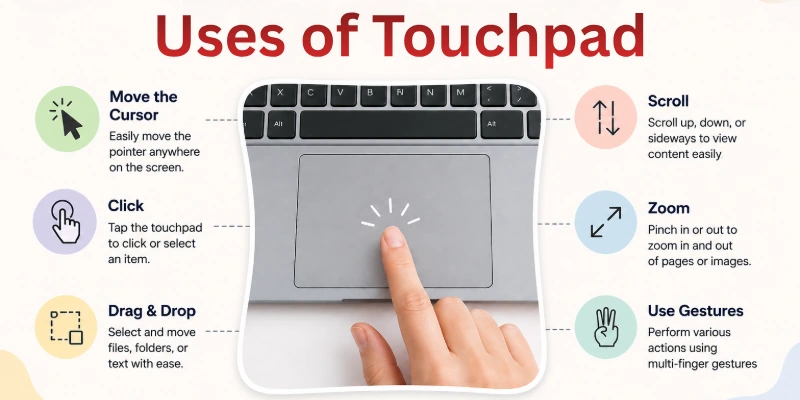
A touchpad helps users control a laptop without an external mouse. It makes daily work faster, easier, and more comfortable.
- Cursor Control: moves the pointer smoothly on the screen and helps users open files, apps, and menus with easy finger movement
- Scrolling Pages: scrolls up and down web pages, documents, and apps using simple two-finger gestures for quick reading
- Click Actions: performs left click, right click, and double click directly on the touchpad for fast selection and commands.
- Drag and Drop: moves files, folders, and images from one place to another by holding and dragging with a finger.
- Zoom Function: zooms in and out on photos, maps, and documents using pinch-in and pinch-out gestures
- Text Selection: highlights and selects text easily by dragging a finger across the touchpad surface
- Shortcut Gestures: switches between apps, tabs, and desktop view using multi-finger gestures for faster work
- Laptop Navigation: Controls the full laptop system without an external mouse, making it useful for travel and daily tasks.
Importance of Touchpad
A touchpad plays an important role in making laptop use simple and efficient. It allows users to control the computer without needing an external mouse. Many people rely on it for quick access and smooth navigation in daily tasks. Its importance increases because it saves time and improves comfort.
- Easy Navigation: helps users move the cursor smoothly and control different areas of the screen with simple finger movement
- Space Saving: removes the need for extra devices and keeps the laptop setup clean and compact for daily use
- Fast Access: allows quick opening of files, folders, and applications without using additional hardware
- Portable Use: supports working anywhere, making it ideal for travel, study, and office tasks
- Gesture Control: enables multi-finger actions like scrolling, zooming, and switching between apps easily.
- Built-in Tool: comes already installed in laptops, so users can start working without any extra setup
- Improved Efficiency: helps complete tasks faster by reducing dependence on external pointing devices
Advantages of Touchpad
A touchpad gives users a simple and built-in way to control a laptop without needing a mouse. It helps people work faster because everything stays in the keyboard area. Many users prefer it for travel, study, and office tasks because it saves space. It also supports modern gestures that make daily work easier and smoother.
- Removes the need for an external mouse and keeps the laptop setup clean and compact
- Allows smooth cursor movement with simple finger gestures on the surface
- Supports work anywhere without carrying extra accessories or devices
- Enables quick switching between files, apps, and browser tabs
- Provides multi-finger actions for scrolling, zooming, and shortcuts
- It comes integrated in laptops, so users can start working instantly
Disadvantages of Touchpad
A touchpad makes laptop use easy, but it also has some limitations. Many users face small issues while working for long hours on it. It does not always give the same comfort as an external mouse. Understanding its drawbacks helps users choose the right input method for their work.
- Causes finger strain during long, continuous use sessions
- Works less accurately for detailed graphic design tasks
- Responds slowly when fingers are wet or oily
- Triggers accidental clicks while typing on the keyboard
- Gives limited speed for gaming and fast actions
- Becomes difficult to use without proper hand support
Features of Touchpad
A touchpad comes with many useful features that make laptop use simple and smooth. It helps users control the cursor without needing an external mouse. Modern touchpads also support smart gestures that improve speed and comfort. These features make everyday tasks easier for students and professionals.
- Smooth Surface: provides a flat and sensitive area that allows easy finger movement for precise cursor control
- Multi-Gesture: supports two or more finger actions like scrolling, zooming, and rotating for faster work
- Click Support: lets users tap or press to perform left-click, right-click, and double-click functions.
- High Sensitivity: detects even light finger movement to move the cursor quickly and accurately on-screen
- Palm Rejection: ignores accidental touches from the palm while typing to avoid unwanted cursor movement
- Built-in Design: comes integrated into laptops, so users can start using it without any extra device
Future of Touchpad
A touchpad continues to evolve with new technology and smarter features. It plays an important role in modern laptops, and future upgrades will make it even more powerful and user-friendly. Many companies are working on improving speed, accuracy, and gesture control. In the coming years, touchpads will become more intelligent and interactive for everyday users.
- AI Integration: improves touchpad performance by learning user habits and adjusting gestures for faster and more accurate control
- Haptic Feedback: gives a light vibration response on taps and clicks to create a more realistic and responsive user experience
- Gesture Expansion: introduces advanced multi-finger and hand movements to control apps, windows, and system actions more smoothly
- Ultra Sensitivity: increases detection power so even light finger movement delivers precise and smooth cursor tracking
- Eye Tracking Sync: works with eye-movement technology to help users control cursor direction more naturally and quickly
- Wireless Connection: removes physical wiring limits and improves touchpad response speed in advanced laptops
- AI Shortcut Control: allows users to create smart gesture shortcuts for apps, files, and system tools
- Adaptive Learning: studies user behavior over time and automatically improves accuracy, speed, and personal comfort settings
Touchpad Settings Customization
Touchpad settings allow users to adjust how the touchpad works on their laptop. You can change sensitivity, gestures, and click behavior based on your comfort. These settings help improve speed and accuracy during daily use. Customization makes the touchpad more personal and easier to control.
- Sensitivity Adjustment: changes cursor speed and response level for smoother or slower control
- Gesture Control: enables or disables multi-finger actions like scrolling, zooming, and switching apps.
- Click Settings: lets users modify tap, double tap, and right click functions for easy access.
- Scroll Direction: allows natural or reverse scrolling based on user preference and comfort
- Palm Rejection: reduces accidental touches while typing to improve accuracy and stability
- Reset Option: restores default settings when touchpad changes cause issues or unwanted behavior
Touchpad VS Mouse
A touchpad and a mouse both help you control a computer, but they work in different ways. Many users often compare them to choose the best option for daily work. Each one has its own benefits depending on comfort and usage style. Understanding both helps you pick the right tool for your needs.
Here, we have covered the key differences between a touchpad and a mouse in a simple way.
| Feature | Touchpad | Mouse |
| Portability | Built in and always available in laptops | Needs extra space and a separate device. |
| Control Method | Works with finger gestures on the surface | Works with physical hand movement |
| Accuracy Level | Good for normal daily tasks | Very precise for design and gaming work |
| Speed Performance | Moderate speed for navigation | Faster response for heavy use |
| Comfort Use | Easy for travel and small spaces | Better for long desk work sessions |
| Setup Need | No setup required, ready to use | Needs connection and placement |
| Battery Use | Uses laptop power internally | A wireless mouse needs a battery or charging. |
| Durability | Protected inside the laptop body | Can wear out with external use over time |
Final Thought: What is a Touchpad
In this guide, we have covered what is a touchpad. We discussed how it works and why it is important for laptop users in daily life. I personally recommend using the touchpad regularly instead of relying only on a mouse, as it improves your control and speed over time.
I appreciate your time and hope this guide helped you. Don’t skip the next part of the FAQs. I hope you will find something more interesting, so don’t miss it. If you miss it, you may lose something new.
FAQs: What is a Touchpad
Let’s see the frequently asked questions about what is a touchpad to clear your remaining doubts in a simple way.
A touchpad is a flat control surface found on laptops. It helps you move the cursor using your finger instead of a mouse. You can click, scroll, and select items easily. It is built into the laptop below the keyboard. Many users prefer it because it saves space and works without extra devices.
A touchpad works by detecting finger movement on its surface. It converts your finger motion into cursor movement on the screen. Modern touchpads use sensors for better accuracy. This helps users control the laptop smoothly. It responds quickly to even light finger touches.
A touchpad helps you open files, move the cursor, and scroll pages. You can also select text and drag items. It replaces the need for an external mouse. This makes laptop use easier and faster. It also supports basic navigation in all apps.
A touchpad is important because it gives built-in control for navigation. It saves space and removes the need for extra devices. Users can work anywhere without setup. It improves convenience and portability. It also makes laptops more practical for travel.
Touchpad gestures are finger movements that perform actions. You can scroll, zoom, and switch apps using them. They make laptop use faster and smarter. Most modern laptops support gestures. These gestures improve overall productivity.
Multi-touch touchpad technology allows more than one finger input. You can use two or more fingers for actions. It helps with zooming and scrolling. This feature improves user experience. It also makes navigation more interactive.
Your touchpad may stop working due to driver issues or settings. Sometimes it gets disabled accidentally. Restarting the laptop can fix it. Updating drivers also helps solve the problem. Checking settings often restores normal function.
Touchpad drivers are software that control touchpad functions. They help the system understand finger movements. Without drivers, the touchpad may not work properly. Updating them improves performance. They keep the device running smoothly.
Palm rejection stops accidental touches while typing. It ignores your palm when it rests on the touchpad. This improves accuracy during work. It is useful for fast-typing users. It helps avoid unwanted cursor movement.
A precision touchpad offers better accuracy and gestures. It is designed according to Microsoft standards. It gives smooth performance on Windows laptops. Many modern laptops use it. It supports advanced gesture control.



- Be Respectful
- Stay Relevant
- Stay Positive
- True Feedback
- Encourage Discussion
- Avoid Spamming
- No Fake News
- Don't Copy-Paste
- No Personal Attacks
- Be Respectful
- Stay Relevant
- Stay Positive
- True Feedback
- Encourage Discussion
- Avoid Spamming
- No Fake News
- Don't Copy-Paste
- No Personal Attacks
