How Dose a Computer Mouse Work? Step-by-Step Guide
Published: 17 Apr 2026
It can feel surprising that a small device in your hand controls the cursor so smoothly across your screen. Every click, scroll, and movement involves tiny sensors, circuits, and signals that communicate instantly with your computer. By learning how does a computer mouse work, you can discover why different mice behave differently, how optical and laser sensors track movement, and why proper hand positioning makes a big difference.
In this guide, we have covered the connection between your hand gestures and the cursor on your screen, which helps you work faster, reduce mistakes, and even play games more effectively. Knowing this gives you the confidence to troubleshoot small issues on your own without stress.
How Does a Computer Mouse Work Step-by-Step
Have you noticed how smoothly the cursor moves when you glide a mouse across the desk? Every motion sets off a series of precise actions that your computer quickly processes. In this guide, we will take you through each step so you can understand exactly how this tiny device controls everything on your screen.
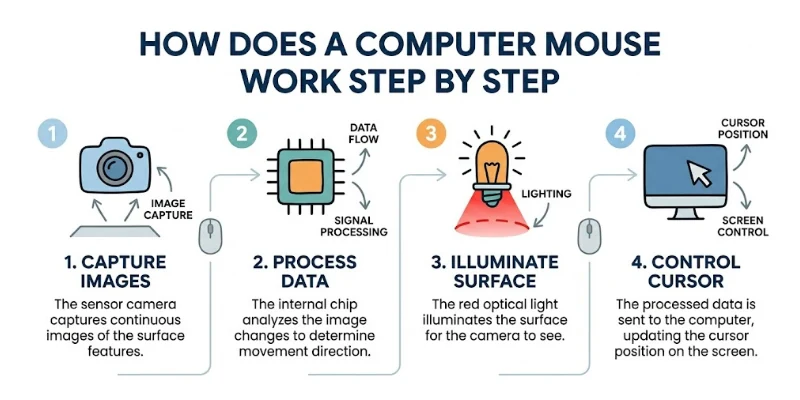
Here is the list showing how a computer mouse works step by step.
- Move the Mouse
- Detect motion
- Track movements
- Convert to signals
- Process signals
- Send data
- Receive data
- Interpret movement
- Update cursor
- Click buttons
- Scroll wheel
- Track gestures
- Give feedback
- Mirror on screen
Let’s take a closer look at each step of how a computer mouse works.
1. Move the mouse
Sliding the mouse starts every action on your computer. The motion may seem simple, but it controls the cursor precisely. How you hold and move your hand affects speed and accuracy. Smooth and steady movements help you click, drag, and navigate efficiently. Practicing proper hand positioning reduces strain and improves control. This first step forms the foundation for all other mouse actions.
- Glide the mouse across the working surface
- Adjust the hand for better control
- Push gently forward and back
- Slide naturally left and right
- Keep fingers relaxed while moving
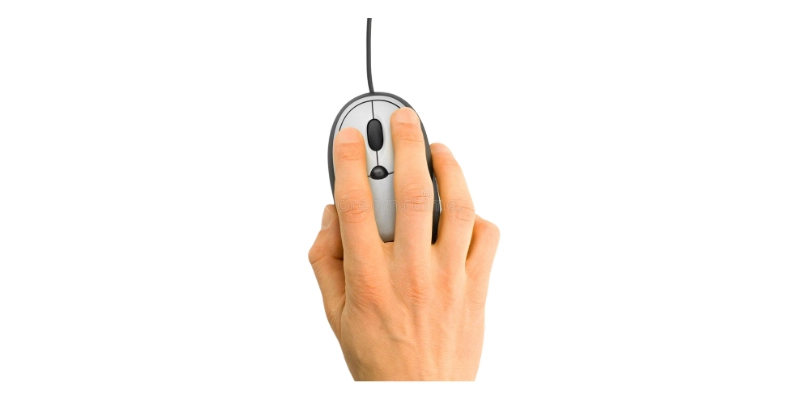
2. Detect motion
The sensors inside the mouse notice every hand movement instantly. They measure the speed, angle, and subtle shifts carefully. Accurate detection ensures that the cursor moves as expected. If the sensors fail, the pointer can lag or jump unpredictably. Strong motion detection makes all clicks and drags reliable. This step is key to responsive and smooth performance.
- Sensors register all hand directions
- Measure speed and subtle shifts
- Detect changes in movement instantly
- Track the cursor position accurately, always
- Recognize small directional adjustments
3. Track movements
After detection, the mouse keeps following every change in position. Continuous tracking allows the cursor to mirror your hand perfectly. Different technologies, like optical or laser, achieve this with high precision. Reliable tracking ensures smooth scrolling, precise selections, and effortless navigation. Each movement is captured to prevent errors. This step gives users control and confidence in every action.
- Monitor motion without delay continuously
- Record small shifts carefully and clearly
- Follow every directional change precisely
- Capture speed variations accurately, always
- Maintain consistent cursor movement naturally
4. Convert to signals
Once movements are tracked, the mouse converts them into digital signals. These signals travel to the computer to tell it what to do. Conversion happens instantly, keeping the cursor responsive. Accurate signal translation ensures that clicks, scrolls, and drags work properly. Without this step, your hand’s motion would not reflect on-screen. This process makes your actions precise and predictable.
- Transform physical motion into signals
- Send movement data to the computer
- Translate hand gestures into commands
- Deliver signals quickly without lag
- Ensure accurate cursor response every time
5. Process signals
After the mouse converts movement into digital signals, its internal circuits process the information. This step ensures that the data is accurate before reaching the computer. Each signal is checked for consistency and timing.
Processing organizes the signals so the cursor responds exactly as expected. Any delay or error during processing can make the pointer jump or lag. Proper signal processing allows smooth clicks, drags, and scrolling. This step is essential for reliable and precise performance.
- Circuits organize all movement signals.
- Filter data for consistent responses.
- Check signals for timing accuracy
- Prepare signals for fast transmission
- Ensure that reliable cursor actions are continuously
6. Send data
Once the signals are processed, the mouse sends the information to the computer. This can happen via USB cable, wireless receiver, or Bluetooth connection. The transfer must be fast to keep the cursor responsive.
Every movement, click, or scroll is transmitted immediately. Strong connections reduce lag and maintain accuracy. Sending data correctly ensures the computer can follow your hand precisely. This step links your actions with on-screen results.
- Transmit movement signals to the computer
- Use USB, Bluetooth, or wireless
- Send data instantly without delay
- Ensure continuous signal delivery speed
- Keep the cursor responsive during operation
7. Receive data
The computer receives the incoming signals from the mouse immediately. It recognizes each instruction and prepares to move the cursor. The operating system constantly monitors the data for accuracy. Any missed signal can cause the pointer to behave unpredictably. Receiving data correctly is vital for real-time responses. This step makes your actions visible on the screen. It bridges the physical motion with digital execution.
- Accept signals from the mouse instantly
- Process all incoming movement data
- Monitor received information continuously
- Check for any missing signals
- Maintain smooth cursor performance always
8. Interpret movement
After receiving the data, the computer interprets the signals as cursor movement. It calculates direction, speed, and distance based on the information sent. The system ensures that the on-screen pointer mirrors your hand accurately.
Different programs may adjust cursor behavior differently, but interpretation is always precise. A correct understanding of signals allows every click, scroll, or drag to work properly. This step is critical for smooth navigation and interaction. It completes the connection between your hand and the screen.
- Translate signals into cursor motion
- Calculate direction and movement speed
- Map hand gestures to screen actions
- Adjust the pointer accurately for programs
- Reflect user motion in real-time
9. Update cursor
The computer constantly updates the cursor as you move the mouse. Every small motion is reflected instantly on the screen. Different programs handle cursor movement slightly differently, but responsiveness remains key.
Accurate updating ensures your clicks and drags happen exactly where intended. The system calculates each position to match hand movement perfectly. Any lag can disrupt workflow or make selection difficult. This step keeps the pointer smooth and precise at all times.
- Refresh the cursor position continuously and instantly
- Match pointer movement with hand gestures
- Reflect screen coordinates accurately every time
- Track cursor location for precise clicking
- Maintain smooth motion across applications
10. Click buttons
Pressing a mouse button sends a signal to the computer immediately. Each click performs a different action depending on the program or context. Right-clicks, left-clicks, and double-clicks all trigger separate commands. Accurate button responses are essential for selecting, opening, or executing tasks. The computer interprets each click according to the current task. This step allows you to interact fully with your software. Proper button usage ensures tasks are completed efficiently and reliably.
- Send click signals to the computer instantly
- Trigger actions based on click type
- Recognize single and double clicks
- Detect left and right button presses
- Respond accurately to every input
11. Scroll wheel
The scroll wheel moves content vertically or horizontally, depending on your program. Rotating the wheel sends signals continuously to the computer. It allows smooth navigation through documents, web pages, or spreadsheets.
Using the wheel correctly saves time and effort. Some mice also have tilt wheels for side-to-side scrolling. This feature gives users precise control over what they see on the screen. The scroll wheel enhances efficiency and ease of use.
- Rotate the wheel to move the content smoothly
- Scroll vertically in documents or pages
- Send continuous signals while rotating
- Navigate efficiently across long pages
- Use the tilt wheel for horizontal scrolling
12. Track gestures
Some advanced mice can detect gestures or multi-button movements. Gestures allow shortcuts, quick navigation, and custom commands. The sensors recognize patterns made with your hand or fingers. Tracking gestures adds speed and flexibility to your workflow.
Each gesture is translated into a command for the computer instantly. This feature improves productivity, especially for complex tasks or design work. Mastering gestures makes using your mouse faster and more intuitive.
- Recognize hand gestures for commands quickly
- Detect patterns for shortcut functions
- Translate finger movement into actions
- Execute commands using multi-button gestures
- Improve efficiency with gesture control
13. Give feedback
The mouse can provide feedback through vibrations or pointer response. This helps you know when an action is recognized. Some advanced mice give tactile or visual signals for clicks, scrolling, or gestures. Feedback ensures you feel control over every movement. It allows you to correct mistakes before they happen. Receiving feedback makes using the mouse more intuitive and precise. This step improves comfort and efficiency during daily tasks.
- Feel vibrations for specific actions
- Receive pointer response instantly
- Detect clicks through tactile signals
- Track gestures with visual cues
- Confirm commands without looking screen
14. Mirror on screen
Every movement you make with the mouse appears on the screen immediately. The cursor follows your hand with precision and accuracy. This ensures that clicks, drags, and scrolling match your intentions. Mirroring makes navigation smooth and predictable.
It allows you to interact with software effectively. Correct on-screen representation is vital for productivity and gaming. This final step completes the connection between the hand and the computer.
- Display cursor matching hand movement
- Reflect every click and drag
- Show scrolling actions accurately always
- Update the pointer position continuously
- Mirror gestures for exact control
Tips to Improve Mouse Performance
A well-maintained mouse makes your work and gaming smoother than ever. Simple changes in handling, settings, and care can significantly improve speed and precision. Paying attention to both hardware and software reduces lag and frustration. Following these tips will help you get maximum control and efficiency from your mouse.
- Clean the sensor carefully: Wipe off dust and debris regularly to ensure smooth tracking and precise cursor movement.
- Adjust sensitivity properly: Set DPI and pointer speed according to your workflow for comfortable and accurate control.
- Use a smooth surface: Choose a high-quality mouse pad that allows steady gliding without slips or uneven motion.
- Keep drivers updated: Regularly install the latest mouse drivers to maintain responsiveness and access advanced features.s
- Check connection quality: Ensure USB, Bluetooth, or wireless signals are strong to prevent lag and intermittent disconnection.
- Maintain proper posture: Keep wrist and fingers relaxed to reduce strain and maintain steady hand control over the cursor.
- Test all button functions: Regularly verify clicks, scrolls, and extra buttons work instantly to avoid unexpected errors.s
Future Working Technology of the Computer Mouse
The technology behind computer mice is evolving quickly to enhance precision, comfort, and user interaction. Future designs focus on advanced sensors, gesture recognition, and improved wireless capabilities. These innovations aim to make navigating, clicking, and scrolling faster and more intuitive. Understanding upcoming technology helps users take full advantage of modern computing tools.
- Advanced optical sensors: Provide ultra-precise tracking on nearly any surface for smoother and more accurate cursor movement
- Gesture recognition technology: Detects hand and finger gestures to perform commands without pressing physical buttons
- Wireless charging integration: Enables continuous use without interruptions or frequent battery replacements
- Ergonomic design improvements: Reduce wrist and hand strain while supporting long-term comfortable use
- AI-assisted pointer control: Learns user habits to predict movements and enhance navigation efficiency
- Customizable button mapping: Allows programming of multiple buttons for software, shortcuts, or gaming functions
- Multi-device compatibility: Works seamlessly across computers, tablets, and smart devices without additional setup
Final Thought: How Does a Computer Mouse Work
In this guide, we have covered how does a computer mouse work. We explored step by step how a mouse moves, detects motion, tracks movements, and converts your hand gestures into precise actions on the screen.
Understanding its functions helps you use your mouse more efficiently and avoid common mistakes. Even though a mouse is simple, using it properly can save time and reduce hand strain. I hope this guide has made the topic clear and easy to follow.
Thank you very much for taking the time to read and learn along with me. Don’t skip the next part of the FAQs. I hope you will find something more interesting, so don’t miss it. If you miss it, you may lose something new.
FAQS: How Does a Computer Mouse Work
Let’s move to the FAQs about how does a computer mouse work to get quick and useful insights.
Knowing how a mouse works helps you choose the right device and use it efficiently. It reduces strain, prevents errors, and improves overall productivity. This knowledge also helps troubleshoot problems and make better adjustments.
Yes, but using a mouse pad improves accuracy and comfort. Smooth, non-reflective surfaces work best for optical mice. Pads also reduce wear on the mouse feet and surface. Using a proper pad also helps maintain consistent tracking during long tasks. It can improve control, especially for gaming or detailed work.
Some modern mice support multi-device pairing via Bluetooth. Users can switch between computers, tablets, or laptops seamlessly. This increases convenience for multitasking across devices. Many mice include a dedicated button to change devices quickly. This feature saves time and makes work more flexible.
DPI stands for dots per inch and measures mouse sensitivity. Higher DPI allows faster cursor movement with small hand motions. Users can adjust DPI settings for comfort and precision. Different tasks may require different DPI levels for better control. For example, gaming often needs higher DPI, while design work needs lower DPI.
Mouse buttons send commands to the computer when pressed. The left button usually selects items, while the right button opens menus or additional options. Some mice have extra buttons for shortcuts. Proper use of buttons improves efficiency and workflow.
An optical mouse uses a light-emitting diode (LED) to detect movement on a surface. The sensor captures the reflected light and converts it into signals for the computer. This allows the cursor to move accurately on the screen. Optical mice work best on smooth, non-reflective surfaces.
There are several types of mice, including optical, laser, wireless, and trackball mice. Each type uses different technology for tracking and movement. Wireless mice rely on Bluetooth or USB receivers. The choice depends on comfort, precision, and usage needs.





- Be Respectful
- Stay Relevant
- Stay Positive
- True Feedback
- Encourage Discussion
- Avoid Spamming
- No Fake News
- Don't Copy-Paste
- No Personal Attacks
- Be Respectful
- Stay Relevant
- Stay Positive
- True Feedback
- Encourage Discussion
- Avoid Spamming
- No Fake News
- Don't Copy-Paste
- No Personal Attacks
