Parts of a Computer Mouse: Complete Guide with Functions
Published: 15 Apr 2026
double-clicks by mistake, stops scrolling, or moves unevenly, it can completely ruin your focus and slow down your work. These small problems usually come from the key components, like the left and right buttons, the scroll wheel, and the motion sensor. I have faced this many times during long working hours, especially when I had urgent tasks to finish.
At first, I didn’t know which part was causing the issue, and it was really frustrating. Over time, I learned how each component works and how tiny problems in one can affect the entire mouse. Now, I can quickly identify which part is acting up and fix it immediately, saving myself from wasted time and unnecessary stress.
Understanding these parts not only keeps your mouse working smoothly but also makes your daily computer tasks faster and more comfortable. In this article, we have covered all the important parts of a computer mouse and how they affect its performance, so you can use it efficiently every day.
So guys, stay with me and discover how every part of a computer mouse works and how to use it like a pro.
Parts of a Computer Mouse Step By Step
Every computer mouse may look simple, but each part plays a special role you probably don’t notice. Understanding these parts step by step can completely change how you use your mouse.
Here is the list of parts of a computer mouse:
- External Parts of a Computer Mouse
- Internal Parts of a Computer Mouse
External Parts of a Computer Mouse
The outside of a computer mouse may seem simple, but every part you can touch has a purpose. Knowing these external parts can help you handle your mouse better and avoid small mistakes that slow you down.
Here is the list of all external parts of a computer mouse.
- Left Button
- Right Button
- Scroll Wheel
- Mouse Body / Shell
- Optical Sensor Cover (bottom)
- Cable / USB Connector (for wired mice)
- Mouse Feet / Pads
Let’s take a closer look at each step
1. Left Button
The left button is the most used part of any computer mouse. We click it to select files, open programs, and interact with websites. It responds to light presses but can feel stiff if used roughly over time. A smooth left button improves speed and reduces finger fatigue. I rely on this button for almost all my work, from writing to browsing. Knowing how it works helps you use your computer efficiently.
- Performs primary clicking for selections
- Opens files and software quickly
- Drag and drop items easily
- Activates double-click functions smoothly
- Supports right-hand finger coordination
- Responds to light and firm presses
2. Right Button
The right button usually opens additional options and menus on your screen. It gives access to context menus that save time while working. I often use it to copy, paste, and explore extra settings quickly. Unlike the left button, it’s not clicked as often but is still very important. Understanding its role helps you navigate your computer faster and smarter. It is small but powerful in daily tasks.
- Opens context menus for tasks
- Provides quick access to settings
- Helps copy and paste content
- Activates shortcut functions efficiently
- Performs secondary selection options
- Enables task-specific commands quickly
3. Scroll Wheel
The scroll wheel is easy to overlook, but it makes browsing much faster. It lets you move through documents, websites, and long spreadsheets without using the keyboard. Some scroll wheels also allow clicking for extra features. I use it constantly while reading articles or working on spreadsheets. A smooth wheel reduces hand strain and improves workflow. Knowing its functions can save you a lot of time every day.
- Scrolls vertically through long pages
- Moves horizontally on some mice
- Functions as a middle button click
- Zooms in and out of documents
- Helps navigate long spreadsheets easily
- Provides smooth movement and control
4. Mouse Body / Shell
The mouse body is the part you hold in your hand every day. Its shape affects comfort, grip, and how easily you move the mouse. A well-designed body reduces hand fatigue during long hours of work. Materials and texture can make it feel smooth or rough. I notice a difference immediately when I switch to a mouse with a better shell. Understanding this part helps you use your mouse more naturally and accurately.
- Provides a comfortable grip for hands
- Shapes affect movement control accuracy
- Reduces fatigue during long work
- Protects internal components from damage
- Materials change surface feel noticeably
- Supports smooth and precise movements
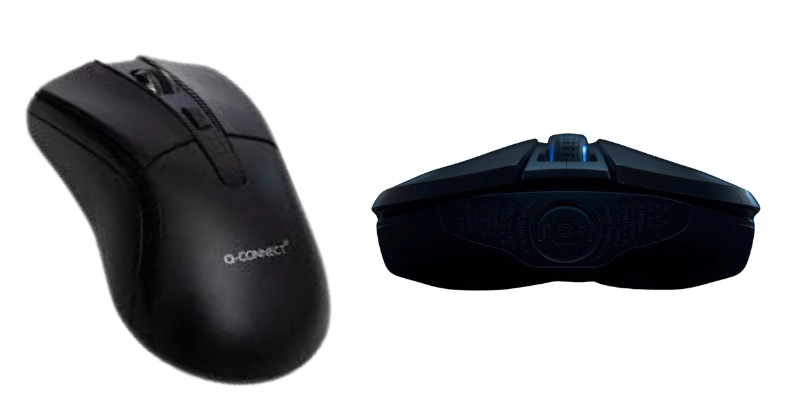
5. Optical Sensor Cover (bottom)
The optical sensor cover sits at the bottom of the mouse and protects the sensor that tracks movement. It ensures the sensor reads surfaces accurately. Even a small scratch can make your cursor jump or lag. I learned this when my mouse suddenly felt unpredictable, and cleaning the cover fixed it. A clean, well-maintained cover improves tracking performance and responsiveness. Knowing about this part helps you avoid common mouse issues and work efficiently.
- Protects the sensor from dirt and dust
- Ensures accurate movement on surfaces
- Prevents cursor jumping or lagging
- Supports smooth tracking for work
- Easy to clean and maintain daily
- Improves sensor responsiveness consistently
6. Cable / USB Connector (for wired mice)
The cable connects your mouse to the computer and provides power and data. A flexible and durable cable allows smooth movement without pulling or snagging. I always check my cable before starting long tasks to avoid interruptions. The connector must fit tightly to prevent connection drops. Even small bends or frays can affect performance. Understanding this part ensures your wired mouse works reliably every time.
- Provides stable power and data transfer
- A flexible cable allows smooth movement
- Prevents connection drops during use
- The connector fits tightly into ports
- Durable material avoids fraying or breaking
- Supports uninterrupted long work sessions
7. Mouse Feet / Pads
Mouse feet or pads are small strips at the bottom that let the mouse glide easily. They reduce friction between the mouse and surface, making movement smoother. I noticed a difference immediately when I replaced worn-out feet; they make controlling the cursor much easier.
They also protect the mouse from scratches and damage. Choosing high-quality feats improves accuracy, especially in games or design work. Knowing about this part can enhance comfort and performance.
- Reduce friction on desk surfaces.
- Improve the smoothness of mouse movement
- Protect the mouse’s bottom from scratches
- Enhance cursor control and accuracy
- Easy to replace when worn out
- Support a comfortable daily computer
Internal Parts of a Computer Mouse
Most people never look inside their mouse, but its internal parts are what make it work perfectly. Understanding these hidden components can help you troubleshoot problems and improve your daily computer use.
Here is the list of all internal parts of a computer mouse.
- Printed Circuit Board (PCB)
- Microcontroller
- Switches (for buttons)
- Optical or Laser Sensor
- Scroll Wheel Mechanism
- LED / Light Source (for optical mice)
- Connector Pins / Wiring
Let’s take a closer look at each step of the internal parts of a computer mouse.
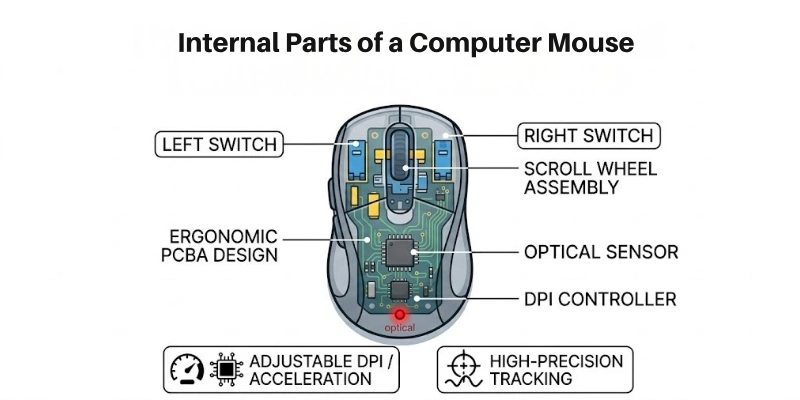
1. Printed Circuit Board (PCB)
The PCB is the backbone of a computer mouse. It connects all internal components and ensures they communicate properly. Every click, movement, and scroll passes through this board. Without a properly working PCB, your mouse may stop responding or behave unpredictably. I always check the PCB if my mouse starts acting strangely. Knowing this part helps you understand how your mouse functions behind the scenes.
- Connects all internal mouse components
- Transmits signals from buttons accurately
- Supports sensor and scroll wheel functions
- Ensures smooth communication inside the mouse
2. Microcontroller
The microcontroller is the tiny brain inside your mouse. It processes signals from the buttons, sensor, and scroll wheel. Every action you perform is interpreted and sent to the computer by this chip. I noticed my mouse lagged once, and it was due to microcontroller issues. Understanding this part shows how a small chip controls all your actions. It makes the mouse fast, responsive, and reliable.
- Processes signals from mouse components
- Controls cursor movements precisely
- Manages button and scroll input
- Sends accurate data to the computer
Switches (for buttons)
Switches are small but crucial parts beneath the buttons. They register every click and ensure the mouse responds instantly. I often notice worn-out switches when clicks feel delayed or inconsistent. Good switches improve speed and accuracy while using the mouse. Learning about them helps you know why your clicks may fail sometimes. They may be tiny, but they affect your daily computer tasks greatly.
- Detects clicks from left and right
- Ensures a fast response every time
- Supports double-click and drag actions
- Provides tactile feedback for accuracy
4. Optical or Laser Sensor
The optical or laser sensor is the heart of your mouse’s tracking system. It reads the surface beneath the mouse and converts movement into signals the computer can understand. I noticed how precise my work became once I switched to a mouse with a better sensor.
Even small dust particles can affect its performance, so keeping it clean is important. The sensor determines how smoothly and accurately the cursor moves across the screen. Understanding this part helps you choose the right mouse for productivity or gaming.
- Detects movement on various surfaces
- Converts motion into computer signals
- Ensures smooth cursor navigation
- Maintains accurate tracking consistently
5. Scroll Wheel Mechanism
The scroll wheel mechanism controls how the wheel rotates and responds to your fingers. It allows smooth scrolling through long documents, websites, and spreadsheets. I often rely on it to move quickly without touching the keyboard.
A well-built mechanism gives precise control and a satisfying click when pressed. Knowing how it works helps avoid issues like sticky or unresponsive wheels. This tiny system makes navigation effortless during long computer sessions.
- Rotates smoothly for vertical scrolling
- Responds accurately to finger movements
- Supports middle-click functions reliably
- Provides precise control while navigating
6. LED / Light Source (for optical mice)
The LED or light source shines beneath the mouse to detect movement accurately. It works with the sensor to track every tiny motion on your desk. I noticed that cleaning the light area improves the mouse’s response dramatically.
Different colors or brightness can affect tracking performance slightly. Understanding this part explains why optical mice perform differently on various surfaces. It’s small but essential for fast and precise cursor movement.
- Illuminates the surface for sensor detection
- Enhances the accuracy of cursor movement
- Works consistently across different surfaces
- Improves overall mouse tracking performance
7. Connector Pins / Wiring
Connector pins and wiring inside the mouse carry electrical signals between the buttons, sensor, and microcontroller. They ensure every click and movement reaches the computer correctly. I have experienced connection issues when wires were loose or damaged.
Good wiring prevents lag, misclicks, and inconsistent tracking. Knowing about this part helps maintain a reliable and responsive mouse. Even small internal connections play a big role in everyday computer tasks.
- Transmits signals from buttons accurately
- Connects internal parts to the microcontroller
- Prevents misclicks and signal loss
- Maintains reliable mouse performance consistently
Conclusion
In this guide, we have covered parts of a computer mouse. You now have a clear understanding of how each part works and how it affects your daily tasks. This knowledge can help you use your mouse more efficiently and even fix small issues on your own. Thank you for staying with me until the end and giving your valuable time to this article.
I hope this guide made your learning easy and useful in a practical way. This small bit of knowledge can make a big difference in your daily computer work. Don’t skip the next part of the FAQs. I hope you will find something more interesting, so don’t miss it. If you miss it, you may lose something new.
FAQS: Parts of a Computer Mouse
Now, let’s explore some frequently asked questions about the parts of a computer mouse to remove any confusion you
The main parts of a computer mouse include the left button, right button, scroll wheel, sensor, and body. These parts work together to control movement and perform actions on a computer. Each part has a specific role in making the mouse function smoothly. Understanding them helps you use your mouse better.
The scroll wheel allows you to move up and down pages quickly. It saves time when reading long documents or browsing websites. Some scroll wheels also support clicking for extra functions. This makes navigation easier and faster. It also reduces the need for keyboard use.
Internal parts of a computer mouse include the PCB, microcontroller, switches, sensor, and wiring. These parts work behind the scenes to control the mouse. They help process signals and send data to the computer. Without them, the mouse cannot function. They ensure smooth and reliable performance every time.
External parts are the visible components, like buttons, the scroll wheel, and the body. These are the parts you touch and use daily. They directly affect comfort and control. Good external design improves user experience. It also makes long use more comfortable.
The microcontroller acts like the brain of the mouse. It processes signals from buttons and the sensor. It sends this information to the computer. This ensures a quick and accurate response. It keeps the mouse working smoothly at all times.
The light source helps the sensor detect movement. It shines on the surface to track motion accurately. Without it, the sensor cannot work properly. This is important for smooth cursor movement. It also improves tracking on different surfaces.
A mouse may stop working due to sensor issues, cable damage, or worn switches. Dust or dirt can also affect performance. Checking the parts can help find the problem. Simple fixes often solve it. Regular maintenance can prevent such issues.





- Be Respectful
- Stay Relevant
- Stay Positive
- True Feedback
- Encourage Discussion
- Avoid Spamming
- No Fake News
- Don't Copy-Paste
- No Personal Attacks
- Be Respectful
- Stay Relevant
- Stay Positive
- True Feedback
- Encourage Discussion
- Avoid Spamming
- No Fake News
- Don't Copy-Paste
- No Personal Attacks
