What is a Computer Mouse? Everything You Need to Know
Published: 14 Apr 2026
If you have ever felt slow while using a computer or struggled to click the right option, you are not alone. Many beginners face this problem because they do not fully understand what is a computer mouse is or how to use it properly in daily tasks. I have worked with many new users, and I often notice that they waste time just trying to move the cursor or select simple options. This confusion can make even easy work feel stressful and tiring.
In this article, we have covered this topic simply and clearly so you can understand it without confusion. In my experience, once you clearly understand how this device works and start using it with confidence, your speed improves, your accuracy becomes better, and you feel more in control of your work. Simple tasks like browsing, selecting files, and opening programs become smooth and much less frustrating.
What is a Computer Mouse Simple Definition
A computer mouse is a small, handheld device that helps you control everything on your screen with ease. You move it across a flat surface to guide the cursor exactly where you want. It allows you to click, drag, open files, select text, and navigate programs quickly.
Most people use a mouse every day for work, study, or browsing the internet, and it makes tasks much faster than relying on the keyboard alone. Some mice connect with a wire, while modern ones work wirelessly, giving you more freedom to move. I use a mouse daily, and it makes editing documents, playing games, and organizing files feel smooth and effortless.
Even for beginners, learning to use this simple device properly improves control, speed, and comfort when using a computer. This small tool is more powerful than it looks, and it plays a vital role in making everyday computer tasks easier and more efficient.
History of the Computer Mouse
The computer mouse has a fascinating history that changed how we interact with computers. It started as a simple idea and evolved into a device we use every day. Inventors and engineers improved its design over time, making it faster, lighter, and more comfortable. Understanding this history helps you appreciate how this small tool became an essential part of modern computing.
- 1964 – First Prototype: Douglas Engelbart invented the first mouse, a wooden device with two wheels. It allowed users to move a cursor on the screen for the first time, showing a new way to interact with computers.
- 1970s – Early Designs: Engineers experimented with different shapes and materials. Ball-based mice were developed, which rolled to detect movement more accurately than wheels.
- 1980s – Commercial Release: The mouse became available for personal computers, especially with the Apple Lisa and Macintosh. This made it a household tool and introduced point-and-click computing to everyday users.
- 1990s – Optical Mice: Optical sensors replaced the ball mechanism. These mice worked on almost any surface and required less maintenance.
- 2000s to Present – Wireless and Ergonomic: Modern mice became wireless, rechargeable, and ergonomically designed. Gaming mice, multi-button mice, and portable designs made them faster, more comfortable, and suited for various tasks.
How Does a Computer Mouse Work?
A computer mouse works by converting your hand movements into actions on the screen. When you move it, the cursor responds immediately, helping you select, drag, and open items. Different types of mice use different technologies to detect motion and clicks. Understanding how it works makes it easier to use and maintain this essential tool effectively.
- Movement Detection: The mouse senses motion using a ball, optical sensor, or laser. As you move it across a surface, the device translates this movement into cursor movement on the screen.
- Button Clicks: Pressing the left or right button sends signals to the computer. These clicks perform actions like opening files, selecting text, or activating programs instantly.
- Scroll Wheel Function: The wheel allows you to scroll up and down pages smoothly. Some advanced mice have tilt or multidirectional scrolling for faster navigation.
- Optical and Laser Sensors: Modern mice use optical or laser technology to detect even small movements accurately. This makes them precise and reliable on most surfaces.
- Wireless Communication: Wireless mice connect to computers via Bluetooth or USB receivers. They send data without a cable, giving users more freedom to move.
- Power and Maintenance: A computer mouse requires batteries or a rechargeable source. Keeping it clean and placing it on a smooth surface ensures smooth performance and longer life.
Parts of a Computer Mouse
A computer mouse has several parts that work together to make navigation smooth and accurate. Each component plays a specific role, from moving the cursor to performing clicks and scrolling pages. Knowing these parts helps you understand how the mouse works and use it more effectively. This knowledge also makes it easier to maintain or troubleshoot if something stops working.
- Left and Right Buttons: These are the main controls of a mouse. The left button usually selects or opens files, while the right button gives additional options through context menus.
- Scroll Wheel: Located between the buttons, it lets you quickly scroll up and down pages. Some scroll wheels also support side scrolling or clickable functions for extra shortcuts.
- Optical or Laser Sensor: This part detects movement and sends it to the computer. Modern sensors are precise and work on almost any flat surface, making the mouse more responsive.
- Body and Shell: The outer casing provides grip and comfort for your hand. Different designs and materials improve ergonomics and reduce strain during long computer sessions.
- Connection Port or Receiver: Wired mice use USB ports, while wireless mice rely on Bluetooth or a USB receiver. This part ensures that the mouse communicates effectively with the computer.
- Power Source: For wireless mice, batteries or rechargeable cells supply energy. Proper power management keeps the mouse functional and prevents interruptions while working.
Types of Computer Mouse
Computers use different types of mice depending on the tasks and user preferences. Each type has unique features that improve comfort, precision, or speed. Knowing the differences helps you choose the right mouse for work, gaming, or everyday use. Understanding these types also makes using your computer easier and more efficient.
- Mechanical (Ball) Mouse: This is one of the earliest types of mice. It uses a small ball to detect movement on a flat surface. Turning the ball moves the cursor, but it requires cleaning to maintain smooth performance.
- Optical Mouse: Instead of a ball, it uses a light sensor to track motion. This makes it more accurate and responsive on almost any surface, and it requires very little maintenance.
- Laser Mouse: Similar to an optical mouse, but it uses a laser for higher precision. Gamers and designers often prefer it because it can detect even the smallest movements.
- Wireless Mouse: This type connects to a computer without a cable, using Bluetooth or a USB receiver. It gives freedom of movement and reduces desk clutter, making it ideal for laptops and portable setups.
- Trackball Mouse: Instead of moving the entire mouse, you rotate a ball on top to control the cursor. This design saves desk space and provides precise control for detailed work like graphic design.
Uses of a Computer Mouse
A computer mouse makes working on a computer faster and more efficient. It allows you to control the cursor, select items, and interact with programs easily. People use it for both everyday tasks and professional work to save time. Understanding its uses helps you get the most out of this small but powerful tool.
- Navigating the Desktop: The mouse lets you move the cursor across the screen and quickly open files or folders. It helps organize work efficiently and reduces the time spent searching for items.
- Selecting and Editing: You can highlight text, drag files, or copy and paste items with simple clicks. This makes editing documents, spreadsheets, and presentations much easier.
- Browsing the Internet: Scrolling web pages, clicking links, and switching tabs become smooth with a mouse. It improves your online experience and speeds up research.
- Gaming and Design: Many gamers and designers rely on specialized mice for precision control. It enables precise movements for drawing, design, and fast-paced gaming.
- Accessing Shortcuts: Modern mice often have extra buttons to perform actions like opening programs, adjusting volume, or switching applications. These shortcuts save time and improve workflow.
Advantages of a Computer Mouse
A computer mouse makes interacting with a computer simple and fast. It gives you better control over the cursor than using a keyboard alone. Many users find that it reduces mistakes and improves efficiency in daily tasks. Knowing its advantages helps you use it more effectively for work, study, or entertainment.
- Improves navigation speed across programs and files
- Enhances precision control for selecting and editing
- Reduces hand strain compared to keyboard-only use
- Supports multitasking with extra buttons and shortcuts
- Increases productivity in both work and study
Disadvantages of a Computer Mouse
Although a computer mouse is very useful, it has some drawbacks users should be aware of. Using it for long periods can cause discomfort in the hand or wrist. Some mice need batteries or constant charging, which can interrupt work. Certain surfaces can reduce their accuracy, and not all designs fit every hand comfortably. Being aware of these limitations helps you use the mouse wisely and avoid common problems.
- It can cause wrist strain after extended use
- Requires a smooth surface for accurate movement
- Battery replacements are needed in wireless models
- Limited portability compared to built-in trackpads
- Extra buttons may confuse new users
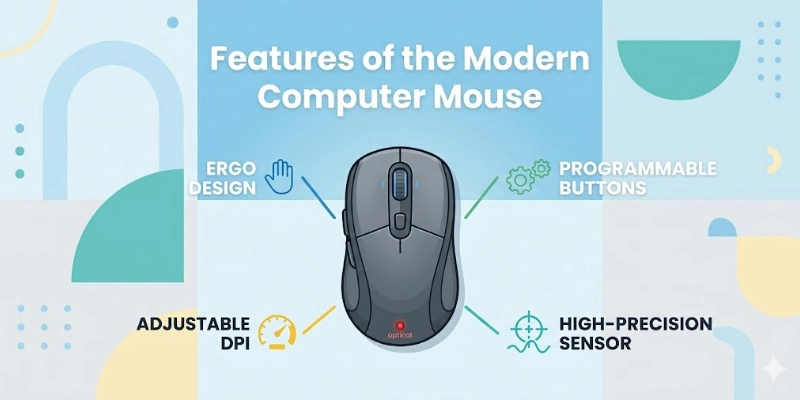
Features of the Modern Computer Mouse
Modern computer mice come with advanced features that make daily tasks easier and more efficient. They are designed to provide comfort, speed, and precision for all types of users. From wireless connectivity to customizable buttons, these features improve productivity and usability. Knowing them helps you choose the right mouse for work, gaming, or creative projects.
- Wireless Connectivity: Modern mice connect via Bluetooth or a USB receiver, giving you the freedom to move without tangled wires.
- High Precision Sensors: Optical and laser sensors detect even small hand movements, making the cursor highly accurate.
- Ergonomic Design: Many mice are shaped to reduce hand fatigue and support long hours of comfortable use.
- Customizable Buttons: Extra buttons can be programmed for shortcuts, allowing faster access to apps and commands.
- Rechargeable Batteries: Some mice have built-in rechargeable batteries, eliminating the need for constant battery replacements.
How to Choose the Right Computer Mouse
Choosing the right computer mouse can make your work or gaming experience much smoother. Different users need different features depending on tasks, comfort, and precision requirements. Paying attention to design, technology, and functionality helps you select a mouse that perfectly fits your needs.
Understanding these factors helps you achieve optimal performance and avoid common frustrations.
- Consider Your Grip: Choose a mouse that fits comfortably in your hand and supports your natural grip style for long usage.
- Check Sensor Type: Decide between optical or laser sensors based on the precision and surface you will use most often.
- Look for Ergonomics: Select a shape that reduces strain on your wrist and fingers, especially for extended work or gaming sessions.
- Evaluate Extra Buttons: Determine if programmable buttons or scroll features will improve your workflow or gaming control.
- Choose Connectivity: Decide between wired or wireless models depending on your need for mobility, desk space, and reliability.
Future of the Computer Mouse
The computer mouse has evolved a lot since its invention, and its future looks even more exciting. Designers and engineers are creating devices that are faster, smarter, and more comfortable. New technologies aim to improve precision, reduce strain, and add functionality for all types of users. Understanding these trends helps you see how this small tool will continue to make computing easier and more efficient.
- Advanced Gesture Control: Future mice may respond to hand gestures in midair, reducing the need to move the device across a surface.
- Enhanced Ergonomics: Designs will focus even more on comfort, preventing strain and supporting long hours of work or play.
- High-Precision Sensors: Next-generation sensors will detect movements with extreme accuracy, even for complex gaming or professional design tasks.
- Customizable Features: Mice will include customizable buttons and programmable settings to support personal workflows, making tasks faster and more efficient.
- Wireless and Smart Connectivity: Future devices will use smarter wireless technology, integrating with multiple devices and improving battery life for seamless use.
Final Thought: What is a Computer Mouse
In this guide, we have covered what is a computer mouse, including its parts, types, features, advantages, and how to choose the right one for your needs. I hope this detailed guide helped you understand how this small device makes everyday computer tasks easier and more efficient. Using a mouse correctly can improve your speed, accuracy, and overall comfort while working or browsing.
I sincerely appreciate your time and attention in reading this guide, and I hope it has given you a clear understanding of this essential tool. Always take a moment to explore and practice using your mouse to get the most out of it. Don’t skip the next part of the FAQs. I hope you will find something more interesting, so don’t miss it. If you miss it, you may lose something new.
FAQS: What is a Computer Mouse
Now, let’s explore some FAQs that answer common questions and tips about what is a computer mouse.
A computer mouse is used to control the cursor on your screen. It helps you click, drag, scroll, and select items easily. Most users rely on it for browsing, typing, or navigating software. Using a mouse makes computer tasks faster and more accurate. It also allows you to interact with games, creative tools, and programs more effectively.
The computer mouse was invented by Douglas Engelbart in 1964. His first model was a wooden device with two wheels. It allowed users to move a pointer on the screen. This invention changed the way people interacted with computers. Today, his invention continues to shape modern computing and everyday work.
A computer mouse works by detecting motion and sending signals to the computer. Mechanical mice use a rolling ball, while optical and laser mice use light sensors. The cursor moves as you move the mouse. Clicking buttons sends commands instantly. Sensors and buttons work together to provide a smooth, responsive user experience.
A mouse has buttons, a scroll wheel, a sensor, a body, and a connection port. Wireless models also include a battery or rechargeable cell. Each part has a specific function for navigation and control. Together, they make computing easy and precise. Knowing these parts also helps in troubleshooting or maintenance.
Most optical and laser mice work on flat, non-reflective surfaces. Glass or shiny surfaces may reduce accuracy. Using a mouse pad improves tracking and comfort. Proper surfaces make cursor movement precise. Some advanced mice can even adjust automatically to different textures.
A mouse improves speed, accuracy, and control while using a computer. It makes tasks such as selecting text, browsing, and navigating software easier. Without a mouse, many actions would take longer. It is an essential input device for daily work or study. Learning to use it effectively can save time and reduce effort.
Yes, regular cleaning improves performance. Dust or dirt can block sensors or reduce precision. Wiping the buttons, scroll wheel, and sensor keeps it smooth. Proper care extends the mouse’s lifespan. Checking batteries or charging them helps prevent interruptions with wireless mice.





- Be Respectful
- Stay Relevant
- Stay Positive
- True Feedback
- Encourage Discussion
- Avoid Spamming
- No Fake News
- Don't Copy-Paste
- No Personal Attacks
- Be Respectful
- Stay Relevant
- Stay Positive
- True Feedback
- Encourage Discussion
- Avoid Spamming
- No Fake News
- Don't Copy-Paste
- No Personal Attacks
