Types of Input Devices Guide for Computer Users and Students
Published: 18 Mar 2026
Have you ever wondered why your computer responds to a mouse in one way, a keyboard in another, or a touchscreen differently? Many people feel confused when they see so many tools and don’t know which one to use for their task. Each of the types of input devices communicates with your computer in a unique way, allowing it to read your commands accurately. Knowing how they work and when to use them makes your work faster, prevents errors, and gives you confidence in using technology every day. From my personal experience, beginners who understand these devices often feel much more in control of their systems.
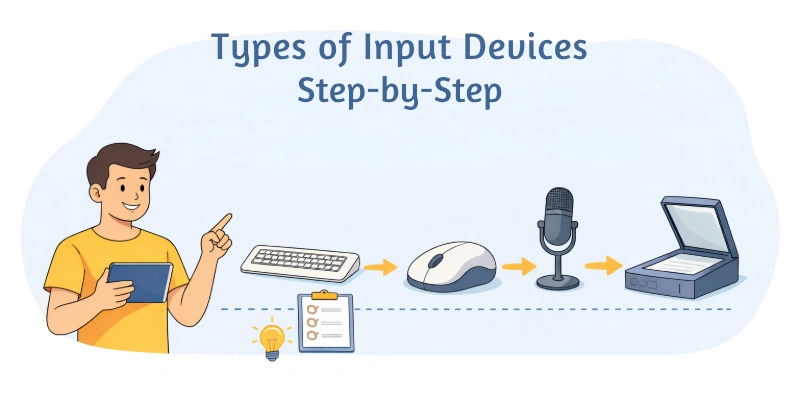
Types of Input Devices Step by Step
Computers can do many tasks, but they need tools to receive instructions from us. Have you ever wondered how each device sends your commands to the system? Understanding the types of input devices step by step makes using your computer much easier and more effective.
Let’s explore the main types of input devices below:
- Keyboard
- Mouse
- Touchscreen
- Scanner
- Microphone
- Webcam / Camera
- Joystick / Controller
- Graphics Tablet / Digital Pen
- Trackball
- Motion Sensors
Keyboard
A keyboard is one of the most widely used input devices in computers. It lets you type letters, numbers, and symbols to communicate with the system. Keyboards are essential for writing documents, entering data, and navigating software quickly. They come in different designs, including standard, ergonomic, and gaming keyboards. Knowing how to use a keyboard efficiently saves time and reduces mistakes. Beginners can improve speed and accuracy with regular practice.
- Typing letters and numbers accurately
- Using function keys for quick actions
- Accessing special keys for shortcuts
- Connecting through wired or wireless options
Tip: Keep your hands relaxed and use correct posture to type faster without strain.
Mouse
A mouse is an important input device that helps you control the pointer on the screen. It allows you to click, drag, and select items easily in any program. Mice are widely used for navigation, games, and design tasks. Different types of mice include optical, wireless, and gaming models. Learning how to use a mouse efficiently improves precision and speeds up work. Even beginners can get comfortable with simple practice and small movements.
- Moving the pointer across the screen
- Left and right clicking actions
- Scrolling using the wheel easily
- Connecting with USB or Bluetooth
Tip: Move the mouse using your arm, not wrist, to avoid fatigue and improve control.
Touchscreen
A touchscreen is an input device that allows you to interact directly with the display. You can tap, swipe, or pinch to control programs and applications. Touchscreens are common in smartphones, tablets, and modern laptops. They make navigation faster and more intuitive compared to traditional keyboards and mice. Many people prefer touchscreens for browsing, drawing, or using apps quickly. Understanding how to use a touchscreen properly improves efficiency and accuracy. Beginners can get comfortable with touch gestures through regular practice and experimentation.
- Tap icons to open applications
- Swipe across screen to navigate
- Pinch and zoom for images
- Use gestures to control functions
Tip: Keep the screen clean and use gentle touches to improve responsiveness.
Scanner
A scanner is a device that converts physical documents or images into digital format. It allows you to store, edit, or share printed materials on a computer. Scanners are widely used in offices, schools, and creative work. They save time by quickly converting paper files into editable files. High-quality scanners improve accuracy and preserve details of text and images. Knowing how to use a scanner efficiently helps in managing records and documents. Beginners can start with simple scanning settings and gradually explore advanced features.
- Convert paper documents into digital files
- Scan images for editing purposes
- Store records on computer storage
- Choose settings for high-quality scanning
Tip: Place documents flat and steady to get clear scans every time.
Microphone
A microphone is an input device that captures sound and converts it into digital signals. It allows you to speak, record audio, or give voice commands on your computer. Microphones are widely used for online meetings, podcasts, gaming, and music recording. They make communication and content creation faster and more effective. Modern microphones offer clear sound quality and reduce background noise. Learning to use a microphone properly improves clarity and efficiency during recording. Beginners can start with basic settings and gradually explore advanced options for better results.
- Capture voice for clear recordings
- Use in online meetings easily
- Connect via USB or audio jack
- Adjust settings for best quality
Tip: Speak clearly and keep a steady distance for consistent sound capture.
Webcam / Camera
A webcam or camera is an input device that captures images and video for your computer. It is essential for video calls, online classes, live streaming, and content creation. Webcams allow real-time communication and make remote interactions more personal. Modern cameras provide high-quality images and smooth video recording. Learning proper placement and lighting improves video clarity. Beginners can start with default settings and adjust resolution as needed. Understanding webcam functions helps you appear professional and confident on video calls.
- Record video for meetings and calls
- Capture images for digital projects
- Adjust lighting for better quality
- Connect easily through USB or wireless
Tip: Place the camera at eye level and maintain good lighting for clear visibility.
Joystick / Controller
A joystick or controller is an input device designed to provide precise control over digital systems. It is widely used in gaming, simulations, and some creative applications. Joysticks allow you to move objects or navigate environments smoothly and accurately. Controllers come in different shapes and sizes, including wired and wireless options. Learning how to use a joystick improves reaction time and accuracy in tasks. Beginners can practice with games or simulation software to get comfortable. Understanding the buttons and movement controls makes gameplay or simulation easier and more enjoyable.
- Move characters and objects precisely
- Control games with responsive buttons
- Connect through USB or wireless
- Adjust sensitivity for smoother control
Tip: Hold the joystick firmly but relaxed to avoid hand fatigue and improve precision.
Graphics Tablet / Digital Pen
A graphics tablet and digital pen let users draw or write directly into a computer. They are essential for designers, artists, and creative professionals. These devices allow accurate input for digital artwork, sketches, and photo editing. Graphics tablets provide better control than a mouse for fine details. Learning to use a tablet improves speed and accuracy in creative tasks. Beginners can start with simple drawings to get comfortable with pressure sensitivity. Understanding the pen functions and tablet features makes digital creation easier and more natural.
- Draw directly into design software
- Use pressure for detailed control
- Connect via USB or wireless
- Adjust pen settings for accuracy
Tip: Keep your hand relaxed and move from the arm, not just fingers, for smoother strokes.
Trackball
A trackball is an input device that functions like a mouse but uses a rolling ball to move the pointer. It allows precise control without moving the entire device. Trackballs are useful in limited spaces and for ergonomic setups. They can reduce strain on wrists during long computer sessions. Learning to use a trackball improves navigation speed and accuracy. Beginners can practice small, smooth movements to get comfortable. Understanding button functions and ball sensitivity makes using a trackball efficient and easy.
- Roll ball for precise pointer control
- Use buttons for click actions
- Connect via USB or wireless
- Adjust sensitivity for smooth navigation
Tip: Keep your wrist straight and use gentle finger movements to avoid strain.
Motion Sensors
Motion sensors detect gestures, movement, or body position to control the computer without touch. They are used in gaming, presentations, and interactive systems. These devices allow natural interaction by tracking hand or body movements. Motion sensors reduce the need for physical input devices in some situations. Learning proper distance and gestures improves accuracy and responsiveness. Beginners can start with simple movements and gradually explore advanced functions. Understanding sensor range and gestures makes interaction with computers modern and intuitive.
- Detect hand gestures for control
- Track body movements accurately
- Use for gaming or presentations
- Connect through USB or wireless
Tip: Stand or sit at the recommended distance for accurate gesture recognition and smooth operation.
How Input Devices Are Used in Daily Life
Input devices are part of our everyday interaction with computers and technology. They help us type messages, navigate programs, and give commands quickly. From work to entertainment, these devices make our digital tasks easier and more accurate. Understanding their everyday uses can help you choose the right device for your needs.
- Typing and Writing: Keyboards let you compose documents, emails, and messages efficiently.
- Navigating Digital Systems: Mice and touchpads allow smooth movement across software and applications.
- Creative Work Support: Graphics tablets and digital pens help artists and designers create digital art.
- Communication Tasks: Microphones and webcams enable clear voice calls and video conferences.
- Gaming and Simulation: Joysticks and controllers enhance interaction in video games and virtual environments.
- Document Conversion: Scanners convert physical documents and images into digital files for easy storage and editing.
Conclusion Types of Output Devices
In this guide, we have covered types of input devices. We explored how different devices, from keyboards and mice to touchscreens, microphones, and cameras, help users interact with computers efficiently. Each device serves a unique purpose, whether it is typing, navigating, creating digital art, communicating, or controlling games and software.
Understanding these devices helps you make better choices for work, study, or entertainment, and allows you to use technology with more confidence and ease. By learning their functions and applications, you can improve productivity, reduce errors, and enjoy a smoother digital experience. I truly appreciate your time in reading this guide and hope it gives you practical insights for daily computer use.
Don’t skip the next part of the FAQs. I hope you will find something more interesting, so don’t miss it. If you miss it, you may lose something new.
FAQS Types of Output Devices
The main types of input devices include keyboards, mice, touchscreens, scanners, microphones, webcams, joysticks, graphics tablets, trackballs, and motion sensors. Each device allows users to send commands or data to the computer. Understanding these types helps you choose the right device for your tasks.
Keyboards let you type letters, numbers, and symbols into a computer. They communicate each keystroke to the system instantly. Keyboards are essential for writing, data entry, and navigating software efficiently.
A mouse allows you to move the pointer, click, and select items on the screen. It converts hand movement into computer commands. Using a mouse improves navigation and precision in daily tasks.
Touchscreens allow direct interaction with the display using taps, swipes, or gestures. They are common on smartphones, tablets, and some laptops. While touchscreens are convenient, keyboards and mice are still needed for tasks requiring typing or precision.
Scanners convert printed documents or images into digital files. This allows easy storage, editing, or sharing on a computer. They are essential in offices, schools, and creative work.
Microphones capture sound and convert it into digital signals for computers. They are used for voice commands, recordings, and online communication. Clear audio from a microphone improves productivity in calls, podcasts, or presentations.
Yes, webcams capture video and images and send them to a computer. They are essential for video calls, online classes, and streaming. Using a webcam makes remote communication more personal and interactive.



- Be Respectful
- Stay Relevant
- Stay Positive
- True Feedback
- Encourage Discussion
- Avoid Spamming
- No Fake News
- Don't Copy-Paste
- No Personal Attacks
- Be Respectful
- Stay Relevant
- Stay Positive
- True Feedback
- Encourage Discussion
- Avoid Spamming
- No Fake News
- Don't Copy-Paste
- No Personal Attacks
