What is Computer A Powerful Guide to How Computers Work.
Published: 11 Mar 2026
Ever wondered how people can type documents, play games, or browse the internet so quickly? It might seem confusing at first, but don’t worry. In this guide, you will discover What is Computer?, explore its main parts, understand how it works, and see how it is used in everyday life. By the end, you’ll have a clear and simple understanding of computers, even if you are just starting out.
Simple Definition
A computer is an electronic device that helps us perform tasks quickly and efficiently. It processes information, stores data, and gives results we can use. Computers make learning, working, and entertainment easier. They are used in homes, offices, schools, and many other places.
- Typing documents and homework.
- Browsing the internet and searching for information.
- Playing games or watching videos.
- Communicating online with friends, family, or colleagues.
Examples:
- A student uses a laptop to write assignments.
- A professional uses a desktop to prepare reports.
- A smartphone lets you chat or look up information.
Parts of a Computer
Knowing the main parts of a computer helps beginners understand how it works and how each part affects performance. Each component has a specific role, and understanding them makes it easier to use computers effectively in daily life.
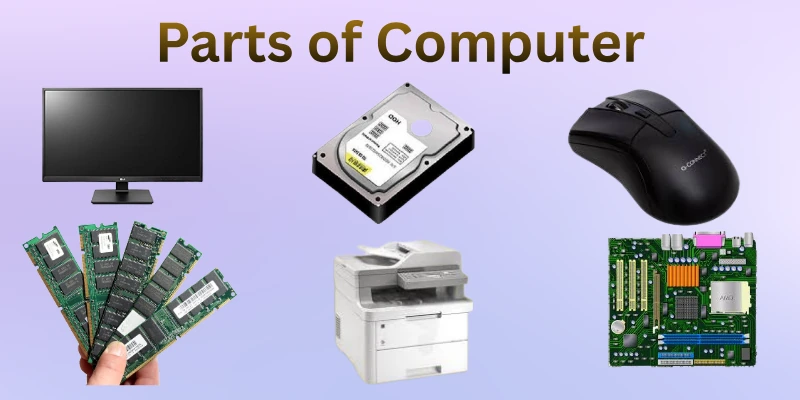
Processor
- The processor, or CPU, is like the brain of the computer.
- It processes instructions and performs calculations to run programs and tasks.
- Example: When you open a game or type a document, the processor manages all the actions quickly.
RAM
- RAM (Random Access Memory) is temporary memory that stores what you’re working on right now.
- It helps programs run faster by keeping data accessible while in use.
- Example: Opening multiple browser tabs works smoothly because RAM stores active data for quick access.
Storage
- Storage devices like HDDs or SSDs save your files, programs, and data permanently.
- They keep information even when the computer is turned off.
- Example: Saving a homework assignment or a photo album on your computer.
Input/Output Devices
- Input devices, like keyboards and mice, let you send information to the computer. Output devices, like monitors and printers, show results from the computer.
- They allow you to interact with the computer and see the results of your actions.
- Example: Typing a document with a keyboard and reading it on the monitor.
How Computers Work (Step‑by‑Step)
Understanding how computers work helps you use them more effectively in daily life. Knowing the basic workflow makes tasks like typing, browsing, or saving files easier to understand. Here is a simple step-by-step guide to how computers handle information.
1. Input
- Input is how data or instructions are entered into the computer.
- You use devices like a keyboard, mouse, or touchscreen to give commands.
- Example: Typing a homework assignment in Word or clicking links in a browser.
2. Process
- The computer’s processor (CPU) works on the data according to instructions from software.
- It performs calculations and makes decisions to complete tasks.
- Example: Opening a game or editing a photo; the CPU processes everything in the background.
3. Output
- Output is how the computer shows the results of processing.
- This can be on a monitor, printer, or speakers.
- Example: Seeing your typed document appear on the screen or printing it for submission.
4. Storage
- Storage keeps your data for later use, either temporarily (RAM) or permanently (HDD/SSD).
- It allows you to access files anytime and prevents loss of information.
- Example: Saving a report on your laptop or storing photos in a folder for future use.
Different Types of Computers
Knowing the different types of computers helps beginners choose the right one for work, study, or entertainment. Each type has specific uses and is designed for certain tasks. Understanding them makes using computers easier and more effective in daily life.
Personal Computer (Laptop, Desktop)
- Personal computers are designed for individual use at home, school, or office.
- They are commonly used for typing documents, browsing the internet, watching videos, and playing games.
- Example: A student uses a laptop to complete homework, while an office worker uses a desktop to prepare reports.
Tablet and Smartphone
- Tablets and smartphones are portable, touchscreen devices that are easy to carry.
- They are often used for browsing the internet, using apps, reading, and communicating.
- Example: A teacher shows lessons on a tablet, and a student chats with friends using a smartphone.
Servers and Mainframes
- Servers and mainframes are powerful computers that handle large amounts of data for organizations.
- They are used in businesses, websites, banks, and cloud services to store, manage, and share information.
- Example: A company uses a server to store employee files accessible to everyone in the office.
Uses of Computers in Daily Life
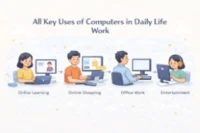
Computers play a vital role in our everyday lives. They help us work faster, learn efficiently, communicate easily, and enjoy entertainment. Knowing how computers are used in daily life helps beginners understand their importance and make the most of them.
Work
- Computers are used for office and professional tasks like typing documents, managing emails, creating spreadsheets, and organizing data.
- They help save time and improve productivity.
- Example: An office worker uses a computer to prepare monthly reports, send emails to clients, and track project progress.
Study
- Students use computers to research information online, write assignments, and make presentations.
- They make learning easier and allow access to vast knowledge.
- Example: A student researches a topic on the internet, writes a report in Word, and prepares a slideshow for class.
Communication
- Computers allow video calls, messaging, and social media connections with friends, family, and colleagues.
- They make it possible to stay in touch instantly across long distances.
- Example: A family uses a computer to video call relatives who live in another city or country.
Entertainment
- Computers provide movies, music, games, and internet browsing for leisure.
- They are a source of fun and relaxation at home.
- Example: Someone watches a movie online, listens to music, plays games, or scrolls through websites and videos on a laptop or tablet.
Other Daily Uses
- Online Shopping: Computers make it easy to buy products or groceries online without going to a store.
- Banking and Payments: You can pay bills, transfer money, and manage accounts using computer applications.
- Creative Work: Computers are used for designing, writing, editing photos or videos, and creating art.
- Example: A designer uses a computer to create digital artwork or edit videos for a project.
Advantages of Computers
Understanding the advantages of computers helps beginners see why they are important in daily life. Computers make work faster, learning easier, communication smoother, and entertainment more enjoyable.
Speed and Efficiency
- Perform tasks much faster than humans.
- Save time in typing, editing, and calculations.
- Help complete work quickly without errors.
Example:
Preparing a report or presentation is faster on a computer than by hand.
Easy Communication
- Send messages instantly through email or apps.
- Make video calls with people far away.
- Help in sharing documents and files quickly.
Example:
Students can discuss group projects online without meeting in person.
Better Learning and Research
- Provide access to a large amount of information.
- Help watch tutorials and educational videos.
- Make preparing assignments and presentations easier.
Example:
A student researches online and creates a slideshow for class.
Storage and Organization
- Store large amounts of data safely.
- Organize files for easy access.
- Prevent loss of important documents and photos.
Example:
Homework, projects, and family photos are stored digitally.
Entertainment and Creativity
- Watch movies and listen to music.
- Play games online or offline.
- Create art, edit photos, or design graphics.
Example:
A designer uses a computer for digital art; a gamer enjoys online games.
Multitasking and Productivity
- Run multiple programs at the same time.
- Switch between tasks without slowing down work.
- Make it easier to manage work and leisure activities.
Example:
Typing a document while listening to music and browsing the internet.
Online Services and Convenience
- Shop online for groceries and products.
- Pay bills and transfer money safely.
- Access services from home without traveling.
Example:
Paying electricity bills or buying groceries online using a computer.
Limitations of Computers
Knowing the limitations of computers helps beginners understand their challenges and use them wisely. While computers make tasks easier, they also have some drawbacks that users should be aware of.
Cost
- Some computers and their components can be expensive.
- High prices can make it difficult for everyone to afford the latest models.
Example:
A gaming laptop with advanced features may cost much more than a basic laptop for students.
Dependence on Power
- Computers need electricity to work.
- Without power, they cannot perform any tasks.
Example:
During a power outage, you cannot type documents or access online services.
Security Risks
- Computers are vulnerable to hacking, viruses, and data theft.
- This can lead to loss of important files or personal information.
Example:
A student’s saved assignment may get deleted if a virus infects the computer.
Technical Issues and Maintenance
- Computers can sometimes crash, freeze, or face hardware problems.
- Fixing them may require technical knowledge or professional help.
Example:
A desktop may stop working suddenly, delaying work or studies until repaired.
Limited Human Judgment
- Computers cannot think or make decisions like humans.
- They follow instructions exactly and cannot handle unexpected problems creatively.
Example:
A computer can calculate numbers accurately but cannot decide the best solution in a real-world situation.
Computer vs Laptop vs Tablet
Choosing between a computer, laptop, and tablet can be confusing for beginners. Each device serves a different purpose in daily life. Knowing their differences helps you pick the right one for work, study, or fun.
Computer (Desktop)
A desktop computer stays in one place and works with separate parts like a screen, keyboard, and mouse. It offers strong performance and suits long hours of work. People often use it at home or in offices. It is great for tasks that need power and comfort.
- Used for office work and online classes.
- Good for gaming and design work.
- Offers a large screen for easy viewing.
- Easy to upgrade and maintain.
- Example: A student uses a desktop at home to study and do homework.
Laptop
A laptop is easy to carry and works on battery power. It gives good performance for daily tasks. Students and office workers prefer it for its balance of power and portability. You can use it at home or on the go.
- Easy to carry in a bag.
- Good for typing, browsing, and meetings.
- Combines screen and keyboard in one device.
- Works with or without charging.
- Example: An employee uses a laptop while traveling for work.
Tablet
A tablet is light and uses a touch screen for control. It is simple to use and great for quick tasks. Kids and beginners often like tablets for fun and learning. It is best for light work and entertainment.
- Very easy to carry and hold.
- Good for reading and watching videos.
- Uses apps for simple tasks.
- Touch screen makes it user-friendly.
- Example: A child uses a tablet to watch cartoons and play learning games.
How to Choose the Right Computer
Choosing the right computer helps you work faster and avoid wasting money. A good choice fits your daily needs and your budget. This simple guide makes it easy for beginners to decide.
Purpose: What will you use it for?
- Think about your main tasks like work, study, gaming, or general use.
- Light tasks need a simple computer. Heavy tasks need more power.
Example:
A student needs it for homework and classes. A gamer needs it for games.
Type: Desktop, Laptop, or Tablet
- Desktops stay in one place and give strong performance.
- Laptops are easy to carry and work anywhere.
- Tablets suit light tasks and fun.
Example:
An office user chooses a desktop. A traveler chooses a laptop.
Performance Needs: Basic or Heavy Tasks
- Basic tasks include typing, browsing, and videos.
- Heavy tasks include gaming, editing, and design work.
- Choose more power if you run many apps at once.
Example:
A teacher needs basic use. A designer needs heavy use.
Portability: Do you need to carry it?
- If you move a lot, choose a light device.
- If you work in one place, choose a bigger one.
- Portability affects comfort and ease of use.
Example:
A student carries a laptop to class every day.
Budget: How much can you spend?
- Low budget suits basic needs.
- Mid budget fits most daily users.
- High budget suits heavy users and gaming.
- A beginner starts with a low-cost laptop for study.
Conclusion
In this article, we learned what is computer is, its main parts, types, uses, and both its advantages and limits. We also compared devices and saw how to choose the right one for daily life. All these points help beginners understand computers in a simple way.
Choose a computer that matches your needs and your budget. Think about whether you need it for study, work, gaming, or general use, and pick a device that fits your lifestyle.
Now it’s your turn. Use these tips to make a smart choice today. Explore more guides to keep learning, and share your thoughts or questions to join the discussion.
FAQs: What is Computer
Many readers have similar questions about what is computer. Below are the FAQs that cover the most important points
A computer is a device that helps you perform tasks like typing, calculating, and browsing. It processes information quickly and makes work easier. People use it for study, work, and entertainment every day.
Examples of computers include desktops, laptops, tablets, and smartphones. Each type serves different purposes depending on your needs. For instance, a desktop is ideal for home work, while a tablet is great for reading and browsing.
Computers are used for work, study, communication, and entertainment. They help type documents, do research online, make presentations, and watch videos. Many people also use them for online shopping and banking.
The main types are desktops, laptops, tablets, servers, and supercomputers. Desktops and laptops are common for personal use. Servers and supercomputers are used by businesses and for complex tasks.
Computers save time, improve learning, and make communication easy. They also store information safely and allow multitasking. Entertainment and creativity are easier with computers as well.
A computer works in four main steps: input, process, output, and storage. You enter data, the computer processes it, shows results, and saves information for later. This makes tasks fast and accurate.
We need computers for work, school, and personal tasks. They make learning, communication, and entertainment easier. Without computers, many daily activities would take longer and be less efficient.

- Be Respectful
- Stay Relevant
- Stay Positive
- True Feedback
- Encourage Discussion
- Avoid Spamming
- No Fake News
- Don't Copy-Paste
- No Personal Attacks
- Be Respectful
- Stay Relevant
- Stay Positive
- True Feedback
- Encourage Discussion
- Avoid Spamming
- No Fake News
- Don't Copy-Paste
- No Personal Attacks
