Types of keyboard keys Powerful Guide to Every Key Function
Published: 10 Mar 2026
Why do some keys type letters while others control actions or shortcuts? This confusion pushes many users to search for types of keyboard keys. I faced the same problem when I started working long hours on a computer.
I often pressed the wrong keys and wasted time fixing mistakes. Later, I learned how each key group works in real tasks. Once you learn the key types, the keyboard feels simple and logical. You stop guessing and start using keys with confidence every day.
What Is a Keyboard
A keyboard is an input device that helps you type letters, numbers, and symbols into a computer. It is important because it lets you write documents, search the internet, and give commands to the system.
Students use it for homework and projects, while office workers use it for emails and reports. In simple words, a keyboard makes it easy to communicate with your computer and get everyday tasks done.
Keyboard Layout Basics
A keyboard layout is the way letters, numbers, and symbols are arranged on your keyboard. It matters because it affects how fast and comfortably you can type. When keys are in familiar places, your fingers move easily and you make fewer mistakes.
The most common layout is QWERTY, named after the first six letters on the top row: Q-W-E-R-T-Y. You see it on most keyboards used in schools, offices, and homes. Other layouts like AZERTY and QWERTZ look similar, but a few letters change places to suit different languages and typing habits.
Keyboard layouts started in the early days of typewriters. QWERTY was designed to stop keys from jamming and later became the standard when typing machines spread around the world. Even though modern keyboards do not jam, people kept using QWERTY because they were already used to it.
Common Keyboard Layouts at a Glance:
QWERTY
- Top row starts with: Q W E R T Y
- Most popular layout worldwide
- Used in English-speaking countries like the USA, UK, and many others
AZERTY
- Top row starts with: A Z E R T Y
- Common in France and some nearby regions
- Made to fit French spelling and accents
QWERTZ
- Top row starts with: Q W E R T Z
- Used in Germany and Central Europe
- The Z key is easier to reach for local words
Types of Keyboard Devices
Different keyboard devices exist because people use computers in many ways. Some type all day at work, some play games, and others need something easy to carry. Choosing the right keyboard makes daily tasks more comfortable and faster.
Standard Wired Keyboard
A standard wired keyboard connects to a computer with a cable. It is common in offices, schools, and homes. You just plug it in, and it starts working. Its main benefit is a stable connection with no need for batteries.
- Use-case: Office and home typing
- Key benefit: Simple and reliable
- Example: A desktop keyboard used in a school computer lab
Wireless Keyboard (Bluetooth/USB)
A wireless keyboard works without a cable and connects through Bluetooth or a small USB receiver. People use it with laptops, tablets, and smart TVs. It helps keep the desk clean and lets you sit farther from the screen.
- Use-case: Home, travel, and living room use
- Key benefit: No wires, more freedom
- Example: Typing on a laptop from the couch
Mechanical Keyboard
A mechanical keyboard uses separate switches under each key. It feels solid and gives clear feedback while typing. Many gamers and heavy typists like it because it is fast and long-lasting.
- Use-case: Gaming and long typing sessions
- Key benefit: Strong feel and durability
- Example: A gamer using it for long gaming hours
Membrane Keyboard
A membrane keyboard has soft keys and a quieter feel. It is light and often comes with new computers. This type is good for everyday tasks and simple use.
- Use-case: Home and basic office work
- Key benefit: Quiet and affordable
- Example: Typing emails on a family PC
Gaming Keyboard
A gaming keyboard is made for players who need speed and comfort. It often has bright lights and extra keys for quick actions. Its main benefit is better control during games.
- Use-case: Gaming setups
- Key benefit: Fast response and extra features
- Example: Playing action games on a gaming PC
Virtual/On-Screen Keyboard
A virtual keyboard appears on the screen instead of being a physical device. You use it by tapping or clicking the keys. It is common on phones, tablets, and touch-screen computers.
- Use-case: Mobile and touch-screen devices
- Key benefit: No physical keyboard needed
- Example: Typing a message on a smartphone screen
Anatomy of a Keyboard Parts and Functions
Knowing the parts of a keyboard helps you use it better and choose the right one. It also makes simple problems easier to understand. Let’s look at the main parts and what they do in daily use.
Frame and Body
The frame and body are the outer shell of the keyboard. They hold all the parts together and give the keyboard its shape. A strong body keeps the keyboard steady on your desk. It also protects the inside parts from dust and small spills.
- Main function: Support and protect all parts
- Key benefit: Keeps the keyboard stable while typing
- Example: A solid keyboard that does not slide while you type an assignment
Keys and Keycaps
Keys are what you press to type, and keycaps are the tops with letters and symbols. They show you what each key does. When you press a key, it sends a command to the computer. Clear keycaps help you type faster and with fewer mistakes.
- Main function: Let you type letters, numbers, and commands
- Key benefit: Easy and accurate typing
Example: Pressing keys to write an email or a school report
Switch Mechanism (Mechanical vs Membrane)
The switch is under each key and detects your press. Mechanical switches feel firm and give clear feedback. Membrane switches feel softer and quieter. This part decides how the keyboard feels when you type.
- Main function: Detect key presses
- Key benefit: Controls typing feel and comfort
- Example: A soft keyboard for quiet office work or a firm one for gaming
Connectors and Ports
Connectors and ports link the keyboard to your device. This can be a USB cable or wireless link. They send your key presses to the computer. A good connection keeps typing smooth and quick.
- Main function: Connect keyboard to the computer
- Key benefit: Fast and stable communication
- Example: Plugging a USB keyboard into a desktop PC
Types of Keys on a Keyboard
Knowing the different types of keys helps you type faster, use shortcuts, and navigate your computer easily. Each key type has a special purpose for daily tasks like writing, browsing, or gaming. Understanding them makes using a keyboard simpler and more efficient.
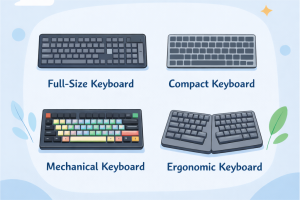
Alphanumeric Keys
These keys include all letters, numbers, and common symbols. They are the main keys used for typing words, numbers, and sentences. Almost everything you write on a computer uses these keys.
- Typing a document or email.
- Entering numbers in a spreadsheet.
Function Keys (F1–F12)
Function keys are at the top of the keyboard. They perform special tasks or shortcuts depending on the program you are using. They can save time and simplify commands.
- Press F1 to open help in most software.
- Use F5 to refresh a webpage or document.
Modifier Keys (Shift, Ctrl, Alt)
Modifier keys change the action of other keys when pressed together. They help create shortcuts and type special characters. They are essential for faster work.
- Hold Shift to type capital letters or symbols.
- Use Ctrl + C to copy text quickly.
Navigation Keys (Arrows, Home, End)
These keys help move the cursor around a document or screen without using a mouse. They make editing and navigating easier.
- Use arrow keys to move between words or cells.
- Press Home or End to jump to the start or end of a line.
Special Keys (Enter, Esc, Backspace)
Special keys perform specific actions. Enter is used to start a new line or confirm commands. Backspace deletes mistakes, and Esc cancels actions.
- Press Enter to send a message or start a new paragraph.
- Use Backspace to correct typing errors.
Numeric Keypad
The numeric keypad is a group of number keys usually on the right side. It helps enter numbers quickly and perform calculations.
- Typing numbers in accounting software.
- Using the keypad for math operations in a spreadsheet.
Keyboard Shortcuts & Key Functions
Knowing keyboard shortcuts and key functions helps you work faster and saves time. Instead of using the mouse for every task, you can type a few keys to perform common actions. This makes daily computer use easier for students, office workers, and beginners.
Most Used Shortcuts (Ctrl+C / Ctrl+V / Ctrl+S)
These shortcuts let you copy, paste, and save files or text quickly. They save time by avoiding multiple steps with the mouse. Learning them makes typing and editing much faster.
- Copy text with Ctrl+C and paste it with Ctrl+V.
- Save a document quickly using Ctrl+S.
Function Keys in Action (F1 for Help, F5 to Refresh)
Function keys perform special actions depending on the program. They make it easy to get help, refresh pages, or control software without searching menus.
- Press F1 to open help in most programs.
- Use F5 to refresh a webpage or update a document.
Modifier Combinations (Shift+Arrow, Ctrl+Shift etc)
Modifier combinations use keys like Shift, Ctrl, or Alt together with other keys. They help select text, move items, or create shortcuts efficiently.
- Hold Shift+Arrow to select multiple letters or lines.
- Use Ctrl+Shift+S to save a file in a new format.
How Keyboards Work (Behind the Scenes)
Understanding how a keyboard works helps you see how each key press becomes an action on your computer. It may feel instant, but several steps happen behind the scenes. Knowing this makes typing and using shortcuts more interesting.
Switch Pressed → Circuit Completed
When you press a key, it pushes down a switch inside the keyboard. This completes an electrical circuit that tells the keyboard a key is pressed. This is the very first step in turning your press into an action.
- Detects which key is pressed
- Completes the electrical circuit
- Sends signal to the controller
- Example: Pressing “A” starts the process to show it on screen
Controller Interprets Scan Code
The keyboard controller receives the signal from the pressed key. It converts this signal into a “scan code” that the computer can understand. This is how the keyboard tells the computer which key you pressed.
- Identifies the exact key pressed
- Converts the press into a scan code
- Prepares the data for the computer
- Example: The controller reads the scan code for “A”
Signal Sent to Computer OS
The keyboard sends the scan code to the computer using USB, Bluetooth, or another connection. The computer receives this signal very quickly. This ensures that your key press appears instantly on the screen.
- Transmits scan code to the computer
- Works via USB, Bluetooth, or other connections
- Ensures fast response for typing
- Example: Signal travels to the computer showing “A” is pressed
OS Interprets Task
The operating system (OS) receives the signal and interprets it. It then shows the result on the screen or performs a command. This step completes the process of turning your key press into action.
- Reads the scan code from the keyboard
- Displays the letter or executes a command
- Updates the program or document in real time
- Example: The letter “A” appears in your Word document
Common Keyboard Problems & Fixes
Keyboards can sometimes have issues that slow down work or make typing frustrating. Knowing common problems and simple fixes helps beginners solve them quickly. This makes daily computer use smoother and stress-free.
Sticky or Jammed Keys
Sometimes keys get stuck or feel hard to press because of dirt or dust. This can make typing uneven or cause repeated letters.
- Remove the keycap if possible and clean under the key.
- Use a soft brush or compressed air to remove dust.
- Press the key several times to check if it moves smoothly.
Example: The letter “E” keeps repeating in Word until cleaned.
Non-responsive Keys
A key may not work at all, either due to a loose connection or software glitch. This stops you from typing certain letters or numbers.
- Check the keyboard connection to your computer.
- Restart your computer to fix temporary software issues.
- Test the keyboard on another device to identify hardware problems.
Example: Pressing “Enter” does nothing when writing an email.
Wireless Connection Issues
Wireless keyboards may stop working if the connection drops or batteries are low. This interrupts typing and shortcuts.
- Replace or recharge the keyboard batteries.
- Reconnect the keyboard via Bluetooth or USB receiver.
- Move closer to the computer to reduce interference.
Example: The keyboard stops typing mid-document because the battery is low.
Key Swap / Language Layout Errors
Sometimes letters appear incorrectly because the keyboard layout changed. This happens when the system is set to the wrong language.
- Check the language settings on your computer.
- Switch to the correct keyboard layout (e.g., QWERTY).
- Restart the program or computer if needed.
Example: Pressing “Z” types “Y” because the layout is set to QWERTZ.
Benefits of Using a Good Keyboard
A good keyboard helps you use a computer easily every day. It makes typing smooth and comfortable. It also helps students and beginners work better and faster. The right keyboard can improve your whole computer experience.
Faster Typing
A good keyboard responds quickly when you press a key. The keys feel smooth and easy to move. This helps you type words faster. You can finish homework or emails in less time.
- Saves time while typing
- Improves typing speed
- Makes writing easier
- Helps finish work faster
Accuracy
Clear letters and good spacing help you press the right keys. You make fewer typing mistakes. This keeps your work clean and easy to read. It also builds confidence while typing.
- Reduces typing errors
- Improves correct spelling
- Saves time on fixing mistakes
- Makes work look neat
Comfort & Ergonomics
A good keyboard feels soft and comfortable for your hands. It supports a natural hand position. This helps reduce pain during long use. You can type longer without feeling tired.
- Reduces hand and finger strain
- Keeps wrists relaxed
- Improves comfort while typing
- Helps during long study hours
Productivity Boost
When typing feels easy, you focus better on your task. You complete work faster and take fewer breaks. This helps you do more in less time. It also keeps you motivated.
- Improves focus on work
- Saves daily working time
- Helps finish more tasks
- Boosts confidence
Keyboard History & Evolution
Understanding the history and evolution of keyboards helps beginners see how typing tools developed into the devices we use today. From early typewriters to modern wireless keyboards, each stage brought improvements that made typing faster, easier, and more efficient. Learning this journey makes it easier to appreciate why keyboards are designed the way they are.
From Typewriter to Digital Keyboard
The first keyboards were part of mechanical typewriters in the 1800s. Users pressed keys that struck inked letters onto paper. Over time, typewriters inspired the design and layout of modern computer keyboards.
- Introduced the QWERTY layout for faster typing
- Mechanical keys produced tactile feedback
- Early typewriters were heavy and manual
- Led to the first computer keyboards in the mid-20th century
Mechanical Switch Evolution
As computers became common, keyboards moved from typewriter-style mechanisms to electrical switches. Mechanical switches gave precise key responses and durability. They became popular for both office work and gaming.
- Offered better accuracy and key feel
- Longer-lasting keys than early digital models
- Varieties like clicky, tactile, and silent switches developed
- Used widely in early personal computers and professional setups
Wireless Era & Touch Devices
Modern keyboards include wireless and touch-based devices. Bluetooth and USB receivers replaced wired connections. Touchscreen keyboards on tablets and phones also became common, making typing portable and flexible.
- Introduced wireless connectivity for convenience
- Portable keyboards for laptops and tablets
- Touchscreen keyboards eliminated physical keys
- Ergonomic and backlit keyboards improved comfort and usability
Conclusion
In this guide, we have covered types of keyboard keys. From my experience, balance comes from understanding the keys and using them with patience instead of rushing. You can manage this by learning basic keys first and then moving to function and shortcut keys step by step.
Thank you for staying with this guide, and I wish you smooth learning ahead. Don’t skip the next part of the FAQs. I hope you will find something more interesting, so don’t miss it. If you miss it, you may lose something new.
FAQs.
Let’s explore some of the most common questions people ask about the types of keyboard keys. These FAQs clear basic doubts and give you a quick and clear understanding of the topic.
A keyboard is used to type letters, numbers, and symbols into a computer. It also helps you control the computer using shortcuts or commands. Students, office workers, and gamers all rely on keyboards daily. Using it correctly makes typing faster and more accurate.
The most common types are: wired, wireless, mechanical, membrane, gaming, and touchscreen keyboards. Each type has different features, such as speed, comfort, or portability. Choosing the right type depends on your needs and how you plan to use it.
A keyboard may stop working due to loose connections, dead batteries (for wireless), or software issues. First, check the connection and restart your computer. If it still doesn’t work, try it on another device to see if the problem is hardware-related.
Practice is key to typing faster. Learn keyboard shortcuts, use proper hand positioning, and try online typing tools or games. A good, comfortable keyboard also helps improve speed and reduces mistakes.
Mechanical keyboards have individual switches for each key, giving better feedback and durability. Membrane keyboards use a soft layer under the keys, making them quieter and usually cheaper. Mechanical keyboards are preferred for gaming or heavy typing, while membrane keyboards are common for casual use.
Yes, many tablets and smartphones support external keyboards via Bluetooth. Some devices also have built-in on-screen keyboards for typing. Using a physical keyboard can make long typing tasks much faster and easier.
Turn off or disconnect the keyboard first. Use a soft brush, compressed air, or a lightly damp cloth to remove dust and dirt. Avoid using too much liquid, as it can damage the keyboard. Regular cleaning keeps keys working smoothly and prevents sticky keys.




- Be Respectful
- Stay Relevant
- Stay Positive
- True Feedback
- Encourage Discussion
- Avoid Spamming
- No Fake News
- Don't Copy-Paste
- No Personal Attacks
- Be Respectful
- Stay Relevant
- Stay Positive
- True Feedback
- Encourage Discussion
- Avoid Spamming
- No Fake News
- Don't Copy-Paste
- No Personal Attacks
